
Step 1
Install the plugin
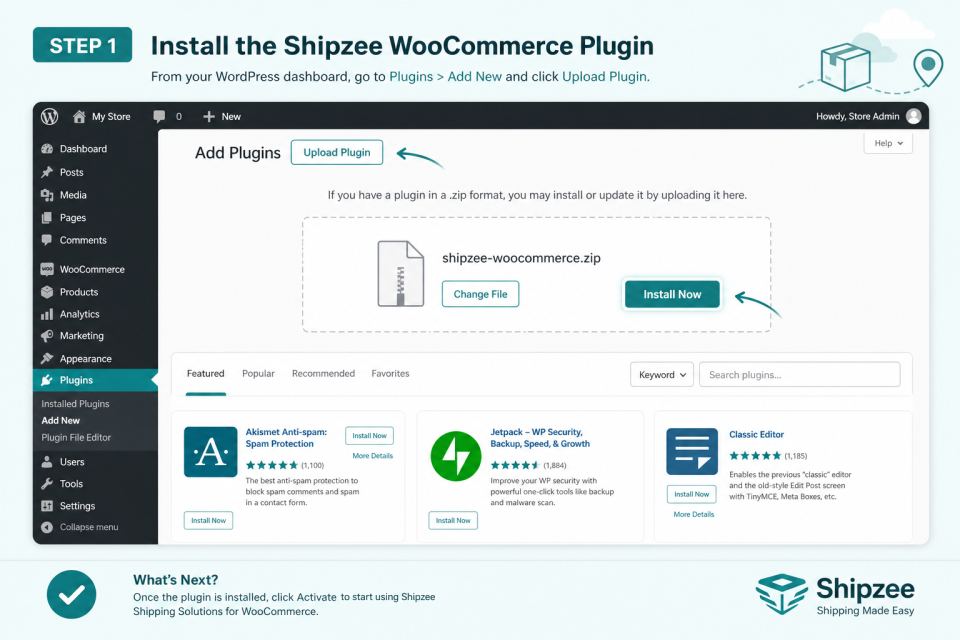
Download the zip, then in WordPress go to Plugins → Add New → Upload Plugin. Choose shipzee-woocommerce.zip and activate Shipzee for WooCommerce.
Store integration
Install the Shipzee plugin on your WordPress store, connect your API key, and send every new order to Shipzee automatically — with full sync logs and one-click resend.
Step 1
Download the zip, then in WordPress go to Plugins → Add New → Upload Plugin. Choose shipzee-woocommerce.zip and activate Shipzee for WooCommerce.
Step 2
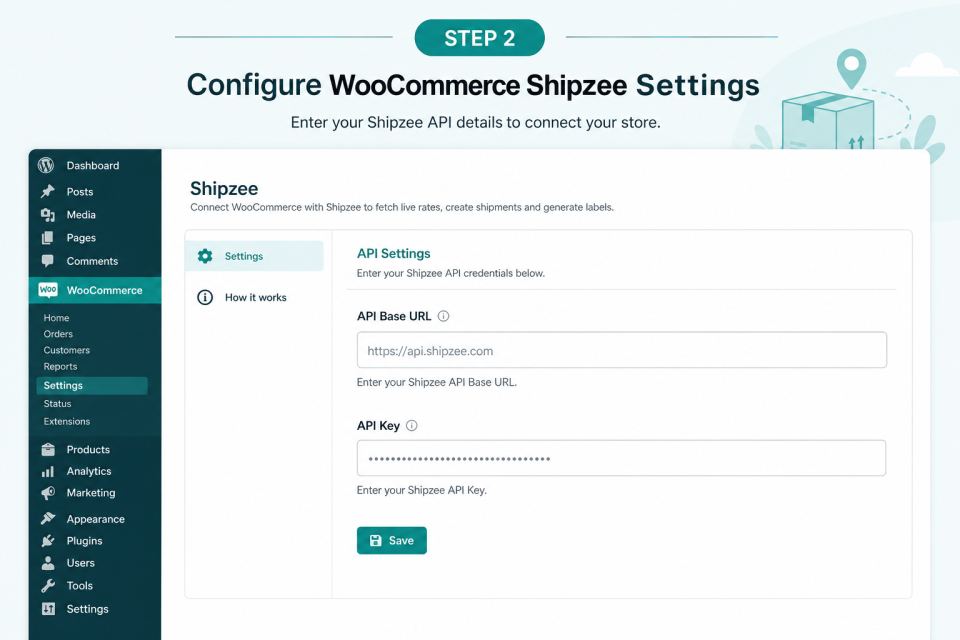
In Shipzee open Settings → API Key and generate a key (copy it once). In WordPress open Shipzee → Settings and paste the API Base URL plus the API key, then save.
Step 3
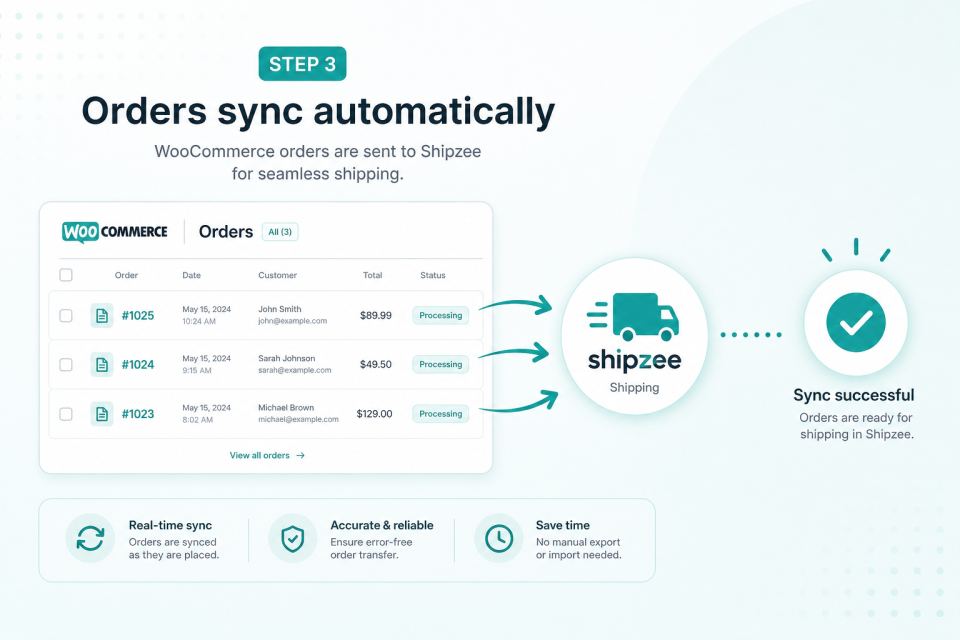
When a customer places an order in WooCommerce, the plugin sends it to Shipzee. The WooCommerce order number is stored as the Shipzee reference.
Step 4
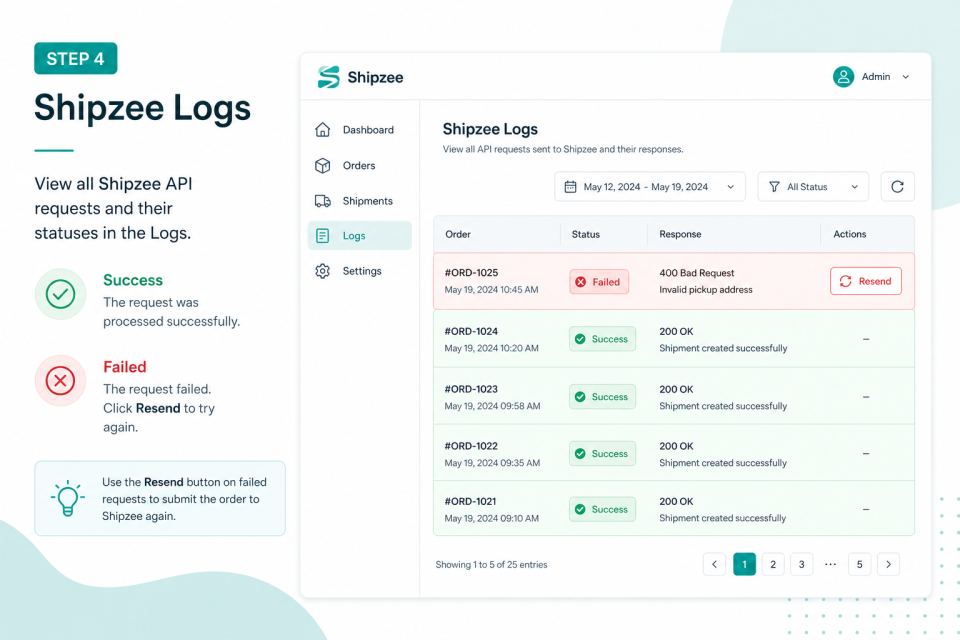
Open Shipzee → Order Logs to see each request and Shipzee response. If a sync fails, click Resend to try again.